Testimonials
Services
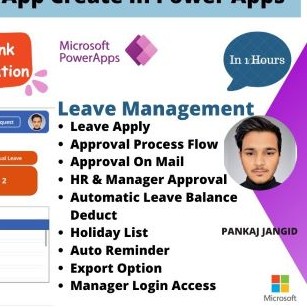

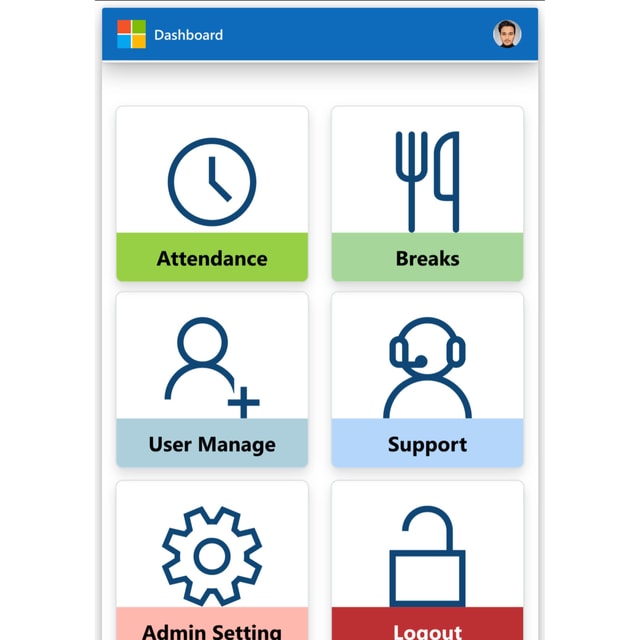
All-in-One Employee Tracking Attendance App - New
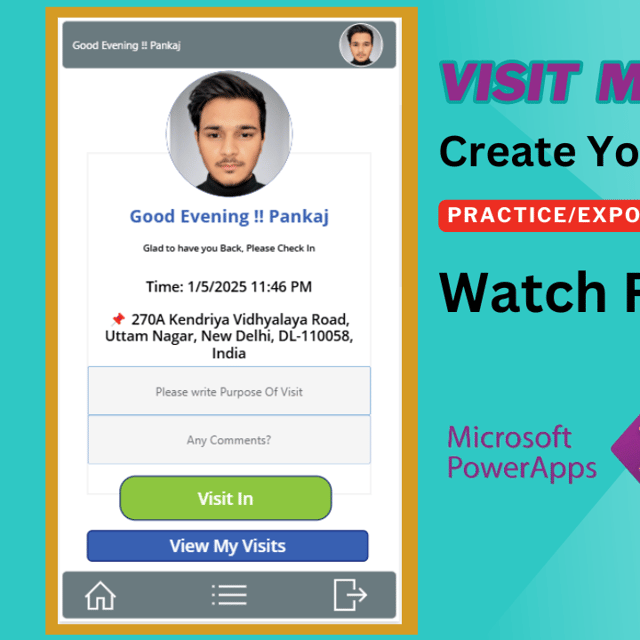
New Attendance Application - Buy with Free Support
Frequently asked questions
Is PowerApps free?
Yes, you can start using PowerApps for free. Microsoft offers a Developer Plan that lets you build and test apps for your own learning at no cost, along with trial licenses that unlock full features for a limited period. However, once you want to share apps with a team or run them across an organisation, you need a paid per-user or per-app plan. So learning and building is free, while business-wide usage is paid.
What are PowerApps templates?
PowerApps templates are pre-built app designs that already contain screens, layouts, galleries, forms and navigation, so you only customise them with your own data instead of building everything from scratch. They range from simple screen templates like login screens, dashboards and data-entry forms to complete business systems such as attendance trackers, help desk systems, invoice management and asset management apps. Microsoft ships some built-in samples, and independent PowerApps creators also offer ready-to-use templates for common business needs.
How to login to PowerApps?
Open the Power Apps maker portal in your browser and sign in with your Microsoft work or school account — the same credentials you use for Office 365. Once signed in, you can create apps, connect data sources and open any apps shared with you. If your organisation does not have a Power Apps license yet, you can sign up for the free Developer Plan to start practising, and you can also run published apps on the Power Apps mobile app.
Where can I find a PowerApps tutorial for beginners?
Start with the free step-by-step learning paths on Microsoft Learn, then follow a structured PowerApps tutorial for beginners on video channels or PowerApps community blogs that walks you through building your first canvas app. The fastest way to learn is to pick one small, real use case — like an expense or attendance tracker — and build it alongside the tutorial. Focus first on screens, galleries, forms and basic formulas before moving to advanced integrations.
Is there a good PowerApps tutorial in Hindi?
Yes, many Indian PowerApps educators publish complete tutorials in Hindi on YouTube, covering everything from canvas app basics to full business applications, and these are often easier to follow than fast-paced English content. Look for a PowerApps tutorial in Hindi that builds one complete project step by step rather than isolated formula demos, and practise each part on the free Developer Plan as you watch.
Where can I download a PowerApps tutorial PDF?
You can find free PowerApps tutorial PDF files shared by trainers, institutes and community blogs — a PowerApps tutorial PDF search will surface several downloadable guides in both English and Hindi. You can also save or print the official Power Apps documentation pages as PDFs for offline reference. Since PowerApps is a hands-on tool, treat the PDF as a revision aid and build apps in parallel to actually retain the concepts.
Where can I find free PowerApps templates?
Power Apps Studio itself includes built-in sample apps and starter screens, and community galleries plus developer forums offer free PowerApps templates you can import and modify. Independent PowerApps consultants also provide ready-to-use business templates — attendance, help desk, invoicing, asset management — either free or at a small one-time price, which saves weeks of build time compared to starting from a blank canvas.
Are there PowerApps templates on GitHub?
Yes. Microsoft maintains official sample PowerApps apps and component libraries on GitHub, and community developers regularly upload canvas app templates, PCF components and complete mini-solutions you can download and study. These are excellent for learning how real apps are structured, but for production use you still need to fix data sources, security and branding — which is why many businesses prefer polished, ready-to-use templates that come with setup support.
Are there PowerApps templates for project management?
Yes, there are several PowerApps templates for project management, including task trackers, project status dashboards, timesheet apps and team update tools. You can start with Microsoft's built-in samples, adapt a community template, or get a ready-made project management app customised to your workflow. Small teams often pair the app with ready-made project management email templates for status updates and reminders to run projects without extra tools.
What is the default PowerApps template size?
When you create a new canvas app, the default PowerApps template size for the tablet layout is 1366 × 768 pixels with a 16:9 aspect ratio, while the phone layout uses a narrower portrait canvas that scales across devices. You can change the screen size and scaling behaviour under Settings > Display in Power Apps Studio. If your app will be used on both phones and desktops, plan a responsive layout from the start instead of stretching a fixed design.
How to create a PowerApps dashboard?
Start by connecting your data source — a SharePoint list, Excel file or Dataverse table — then add galleries or data tables for records, KPI cards using labels with formulas, and charts from the Insert menu for visual summaries. Apply consistent colours, headers and navigation so the screen feels like one coherent dashboard, then save, publish and share it with your team. If you want a shortcut, begin with a ready-made PowerApps dashboard template and swap in your own data source.
Where can I see PowerApps dashboard examples?
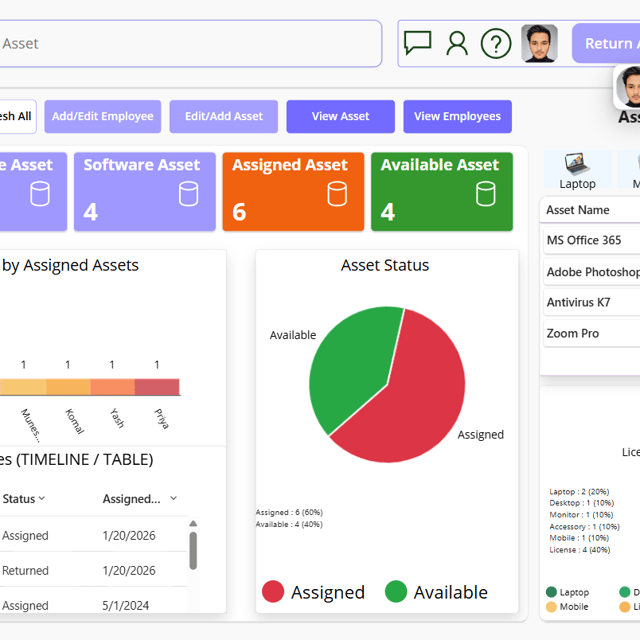
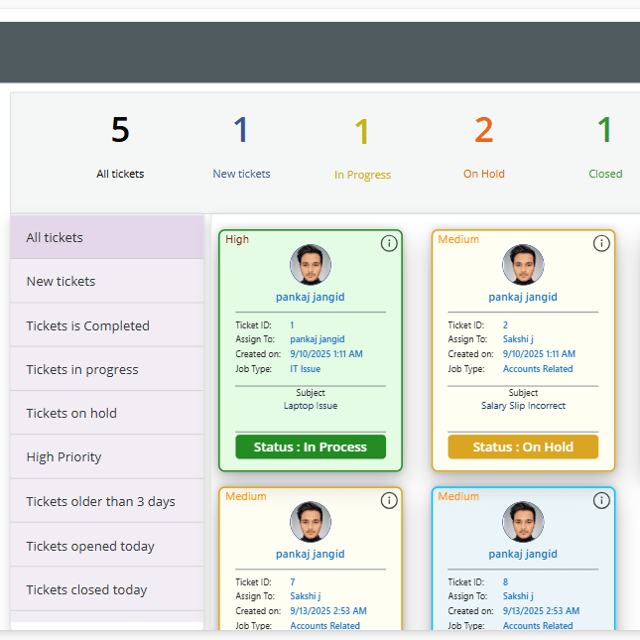
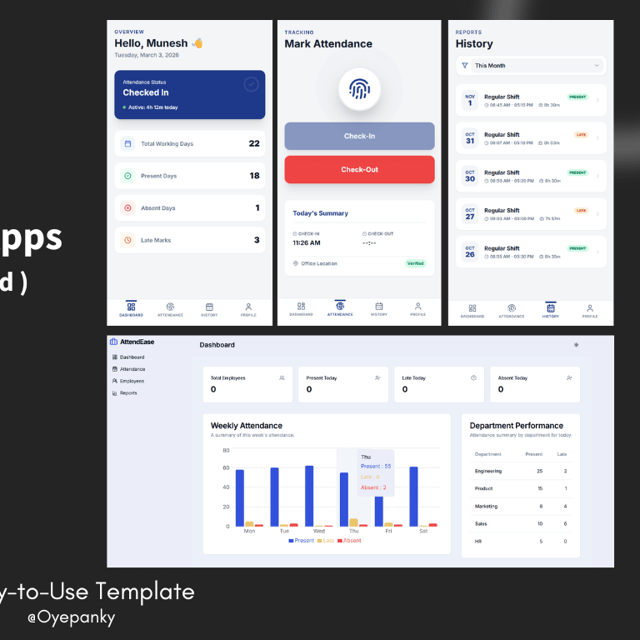
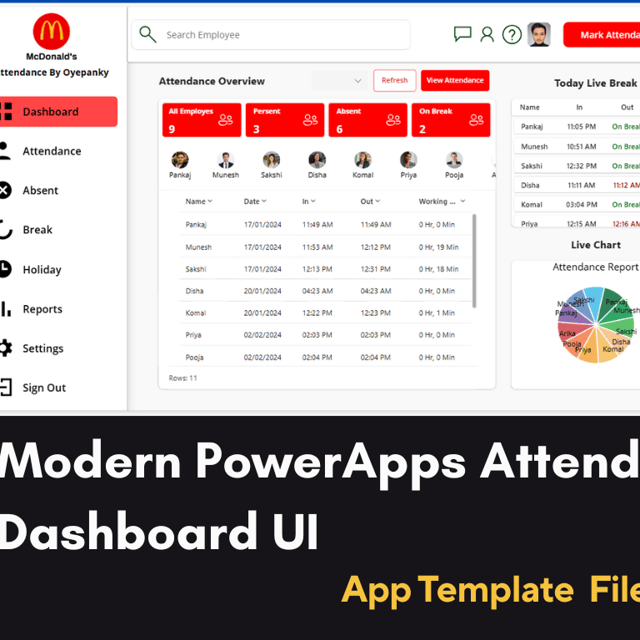
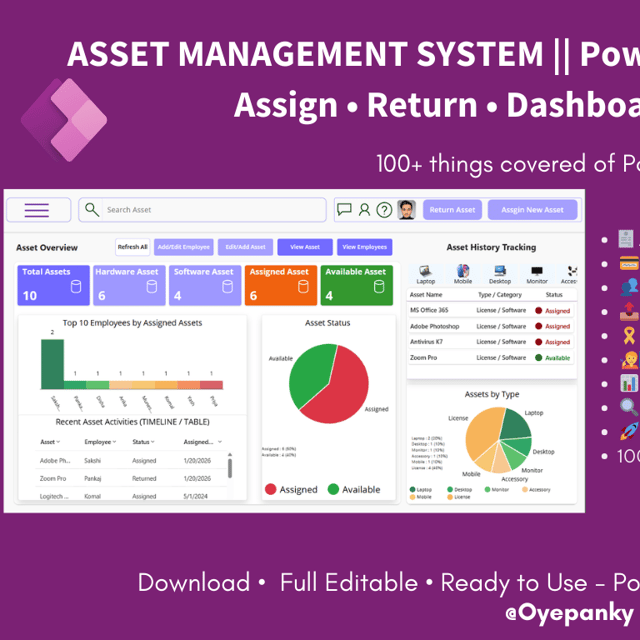
Good places to study PowerApps dashboard examples include Microsoft's sample app gallery, community showcase posts, and YouTube videos where creators rebuild real business dashboards screen by screen. Independent PowerApps consultants also publish demo previews of their dashboard products, showing polished layouts for attendance, sales, help desk and employee data. Save two or three examples you like and note their colour scheme, header style and navigation pattern before designing your own.
What are some practical PowerApps dashboard ideas?
The most in-demand PowerApps dashboard ideas are operational ones: an attendance and leave summary for HR, an employee tracking view for managers, a help desk board showing open versus resolved tickets, an invoice status dashboard for finance, and an asset overview showing allocation and condition. Sales teams often add a pipeline KPI screen. Choose the one process your team updates daily — a dashboard tied to live daily activity delivers the most value.
Can I build a PowerApps dashboard from a SharePoint list?
Yes, a PowerApps dashboard from a SharePoint list is one of the most common setups — add the SharePoint list as a data source in your canvas app, display its columns through galleries, KPI labels and charts, and use filters for views like "this month" or "pending approvals". Keep list columns simple and use delegable queries so performance stays fast as records grow. This works especially well for attendance registers, leave requests, asset registers and ticket logs already stored in SharePoint.
PowerApps dashboard vs Power BI — which one should I use?
A PowerApps dashboard is interactive and operational — users can view data and also submit forms, update records and trigger workflows within the same app. Power BI is built for analysis — richer visuals, modelling across multiple sources and scheduled refresh, but it is read-only for most users. Choose a PowerApps dashboard when your team needs to act on data daily, use Power BI when management mainly needs to monitor trends, or embed Power BI visuals inside a PowerApps screen to get the best of both.